Windows 11 File Explorer Gets Faster and Fixes Dark‑Mode Flashes

Why this matters now
Microsoft is rolling out improvements to Windows 11’s File Explorer that aim to make everyday file management feel snappier, stop the jarring white flashes when dark mode is active, and reduce unexpected explorer.exe crashes. For anyone who spends time navigating folders, opening large directories, or relies on Explorer in an enterprise environment, these changes promise real productivity gains and fewer helpdesk tickets.
Quick background: Explorer, themes, and stability
File Explorer is one of the most used parts of Windows and also one of the oldest. Over decades it has accumulated legacy Windows APIs, third‑party shell extensions, and mixed UI technologies (classic Win32 controls alongside newer XAML/WinUI surfaces). That technical mix is the source of two recurring problems:
- Theme inconsistencies and visual "flashes" when the UI repaints or when a component doesn't honor dark mode.
- Stability problems when a buggy shell extension or heavy background task can crash the explorer.exe process.
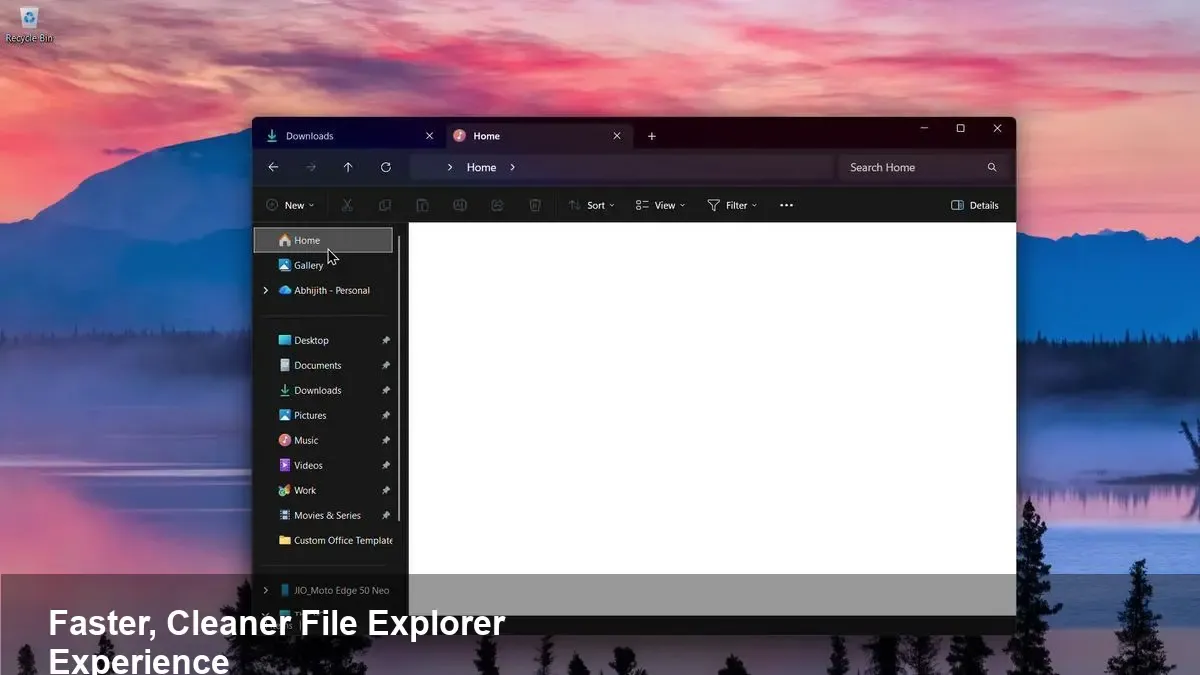
Microsoft’s recent update targets both areas: performance optimizations in rendering and file listing logic, and fixes that reduce instances where light theme elements briefly appear in dark mode. It also includes behind‑the‑scenes fixes intended to lower explorer.exe crashes.
What users will notice day to day
- Faster folder loads: Large directories and network shares should populate quicker. That matters for users who work with tens of thousands of small files or browse cloud‑synced folders.
- Smoother theme transitions: Switching between light and dark mode — or opening Explorer while dark mode is enabled — should no longer show brief white panels or flashing that break concentration and look unpolished.
- Fewer unexpected restarts: If explorer.exe was a frequent pain point, expect a drop in spontaneous crashes and a more stable desktop experience.
Concrete example: a photographer browsing a network NAS with thousands of RAW files will see thumbnails and file lists appear faster, with fewer UI redraw artifacts when switching to dark mode in the evening.
What this means for developers and third‑party tools
If you write shell extensions, context‑menu handlers, or file manager plugins, the update changes the risk profile for your code interacting with Explorer:
- Test for race conditions: Performance optimizations can expose timing issues in extensions that assumed slower responses. Reproduce scenarios where Explorer loads and unloads components quickly.
- Audit UI code for theme support: If your extension hosts UI, ensure it respects system theme APIs so it won’t cause visual flashes or inconsistent colors.
- Consider using modern APIs: Microsoft’s push toward WinUI and the Windows App SDK continues. Migrating heavy UI components away from legacy Win32 painting to modern frameworks reduces compatibility headaches.
Practical developer checklist:
- Validate in dark and light modes across multiple builds of Windows 11.
- Use tools like WinDbg and Event Viewer to capture explorer.exe crash dumps.
- Avoid long‑running work on the UI thread; offload file I/O to background threads.
For IT admins and enterprise teams
The update reduces end‑user disruption, but there are operational steps worth taking:
- Staged rollouts: Try the update in a pilot group (e.g., power users and helpdesk staff) before broad deployment.
- Monitor telemetry: Use Endpoint Manager or your existing monitoring pipeline to watch for explorer.exe crash counts and desktop stability metrics before and after the update.
- Keep third‑party integrations updated: Context‑menu extensions from security or storage vendors are common crash culprits. Coordinate upgrades with vendors as part of the deployment.
Troubleshooting tips for admins: use Reliability Monitor and Windows Event logs to track explorer.exe failures; if a third‑party shell extension is implicated, tools such as ShellExView make it easy to disable non‑Microsoft extensions for testing.
Limitations and potential gotchas
- This update improves common causes but won’t eliminate all crashes. Third‑party code and device driver issues still account for a significant portion of instability.
- Very old extensions that embed custom renderers may still behave oddly; some will need code changes to be fully compatible.
- If you have heavy customization or shell replacements, test the update carefully — differences in rendering timing can affect integrations.
Real‑world scenarios where the change helps
- Remote support: A helpdesk can expect fewer remote desktop sessions interrupted by explorer.exe restarts, speeding up remote troubleshooting.
- Content teams: Editors and designers who switch themes for late‑night work benefit from fewer visual interruptions and smoother browsing of assets.
- Cloud workflows: Teams using cloud‑sync clients (OneDrive, Dropbox) get faster local browsing of synced files, improving iteration speed.
What this update suggests about Microsoft’s direction
- Incremental modernization: Rather than replacing Explorer overnight, Microsoft is smoothing the path by modernizing rendering and theme support incrementally.
- Telemetry‑driven stability work: The focus on crash reduction indicates Microsoft continues to use telemetry to prioritize fixes that reduce support costs and improve end‑user experience.
- Pressure on third‑party ecosystem: As Explorer becomes more modern, third‑party extensions will need to keep pace or risk causing instability for customers.
How to prepare now
- Keep Windows 11 current via Windows Update or your managed update channel.
- Ask power users to report persistent explorer.exe crashes with Reliability Monitor logs.
- Have a short runbook for disabling shell extensions during troubleshooting.
This refresh to File Explorer may look like a small quality‑of‑life update on the surface, but it reduces friction that affects millions of daily interactions with Windows. Faster directory loads, cleaner dark‑mode behavior, and fewer crashes translate directly into saved time for users and fewer tickets for IT teams — a reminder that sometimes the best product improvements are the ones you feel in the small, repetitive moments.