What One UI 9's Cleaner Settings Mean for Users

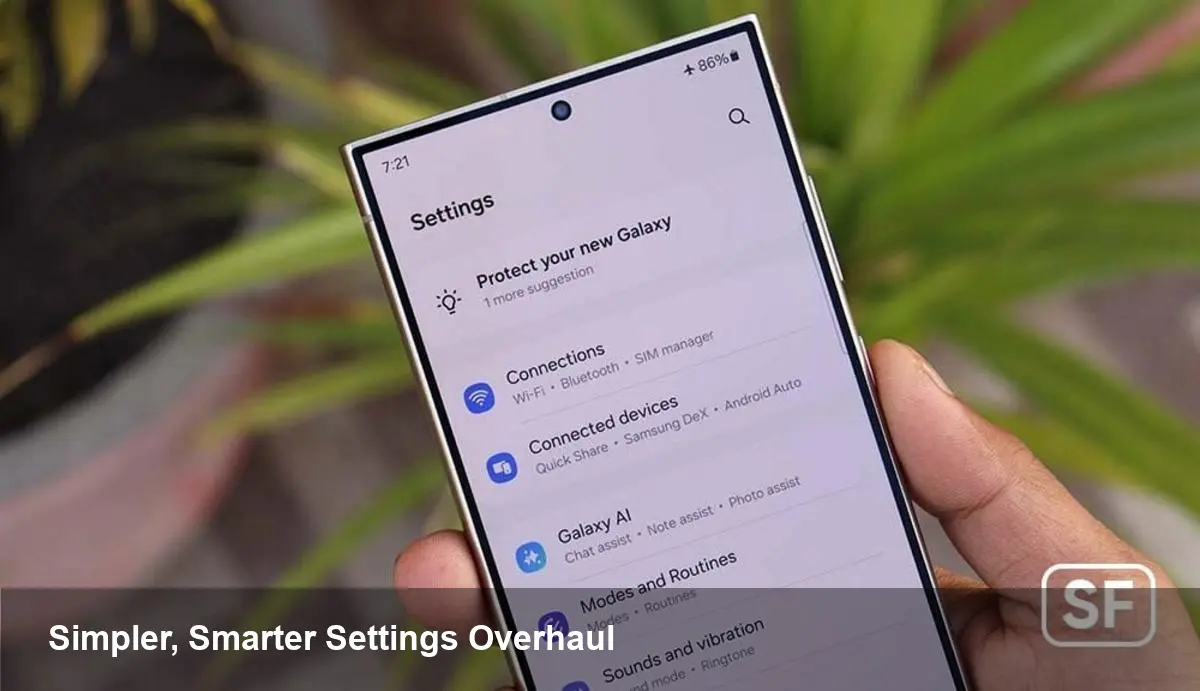
Why Samsung is rethinking Settings
Samsung's One UI has been steadily evolving for years, adding features and customization options on top of Android. The preview of One UI 9 highlights a deliberate pivot: the Settings app is getting a visual and interaction simplification. Instead of piling more toggles and nested screens on top of each other, Samsung appears to be streamlining the way options are presented so people can find and act on key controls faster.
That shift matters beyond aesthetics. Settings is the place where privacy, connectivity, battery and accessibility live. A cleaner UI reduces friction for everyday tasks and makes it easier for organizations to support devices at scale.
What you’ll notice immediately (concrete examples)
- Cleaner top-level layout: Expect fewer dense lists and more generous spacing, clearer section headers, and larger tappable targets. For someone who’s ever fumbled through tiny rows to find a switch, this is a meaningful usability upgrade.
- Smarter search and suggestions: Instead of digging through menus, context-aware suggestions and an improved search bar surface the most likely options based on your usage. For example, a user who has recently changed Wi‑Fi networks might see related network settings or hotspot controls suggested up top.
- Consolidated toggles and related settings: Functions that used to be split across different menus — think Bluetooth device management, nearby device sharing, and audio routing — are being grouped so related actions live in one place.
- One-tap actions from the top: Critical controls (battery saver, performance modes, privacy dashboard entries) are more accessible without multiple back-and-forth taps. Power users can still reach deep settings, but the path to common tasks is shortened.
- Accessibility and readability improvements: Larger fonts, simplified language for nontechnical users, and clearer icons make the app friendlier to a wider audience.
Real-world scenarios
- Casual user: A parent who uses the phone for calls, messages and maps will spend less time hunting for location permissions or battery settings. The new Settings surfaces common privacy toggles and data usage info where they’re easy to act on.
- Power user: Someone juggling performance profiles or custom connectivity setups gets faster access to profiles and fewer mis-taps. Grouped controls and one-tap shortcuts speed workflow without hiding advanced options behind obscure menus.
- IT administrator: When managing a fleet of Samsung devices, having common settings grouped and easier to discover reduces support tickets. Training materials for onboarding can be shorter, and device compliance checks are simpler for nontechnical staff.
Implications for app developers
- Permission flows and discoverability Cleaner system settings change how users find permission and privacy controls. If your app asks for a capability and a user declines, they’re now more likely to find the relevant toggle and change it — or to see a suggested path to do so. Make permission rationale dialogs clear and include an in-app link that opens the exact settings page when possible.
- Integrating with system suggestions Samsung’s move toward contextual suggestions opens opportunities for apps to adapt to the new heuristics. Look for platform APIs or intent paths that let your app hint to the system about common actions (for example, pointing the system search to an in-app settings page or exposing shortcuts the OS can promote).
- Quick settings tiles and shortcuts If your app provides frequently used actions (VPN toggle, device controls, payment shortcuts), ensure your shortcuts integrate cleanly with the One UI patterns and preview how they look with the new spacing and iconography.
- Testing on device form factors One UI runs across phones, foldables and tablets. The simplified design is intended to be responsive, but developers should test how deep links to settings and system prompts behave across different screen sizes and Samsung-specific behaviors.
Business and enterprise value
- Reduced support overhead: With fewer menus and clearer labels, end users will need less hand-holding. That translates to fewer helpdesk tickets and lower training costs.
- Faster user onboarding: Apps that require specific device settings (VPNs, MDM agents, secure folders) benefit from having those toggles more discoverable. This helps IT teams push policies and walk users through setup with fewer steps.
- Policy implications: Device management systems may need minor updates if One UI 9 introduces changed endpoints or reorganized settings that automated scripts rely on. IT vendors should validate their provisioning flows against preview builds.
Trade-offs and things to watch
- Hidden advanced options: Simplification risks burying niche but important settings. Power users or specialist apps may find some deep toggles harder to locate unless Samsung provides a direct path or search hits for those items.
- Fragmentation continues: Samsung still layers its UI on top of Android. While One UI 9 simplifies the Samsung-branded experience, apps and EMM solutions must still account for vendor-specific behaviors and API inconsistencies.
- Transition costs for documentation and support: Companies that maintain internal guides and screenshots will need to update materials to reflect the new layout. That’s a short-term cost for what should be a long-term gain in clarity.
Three takeaways for the near future
- User-first design wins operationally: Cleaner settings reduce support friction and speed feature discovery, which should show up as fewer support tickets and better feature adoption over time.
- Developers should emphasize deep links and clear permission rationale: When system settings are easier to access, apps that guide users directly into the right page will convert better and have fewer abandoned permission flows.
- Expect more contextual system intelligence: Samsung’s emphasis on suggestions suggests the OS will increasingly nudge users toward optimal settings. For developers and IT teams, that means observing and adapting to new heuristics — and exploring ways to cooperate via supported APIs.
If One UI 9 fully lands on Samsung’s flagship phones and foldables with the cleaner, smarter Settings shown so far, it’s a useful reminder: simplifying core UI surfaces can have outsized benefits for usability, support and device management. For users, it reduces friction; for developers and IT teams, it changes where and how you guide people through device setup and permissions.