Logitech MX Plugins: Control Office, Slack and Notion

What changed and why it matters
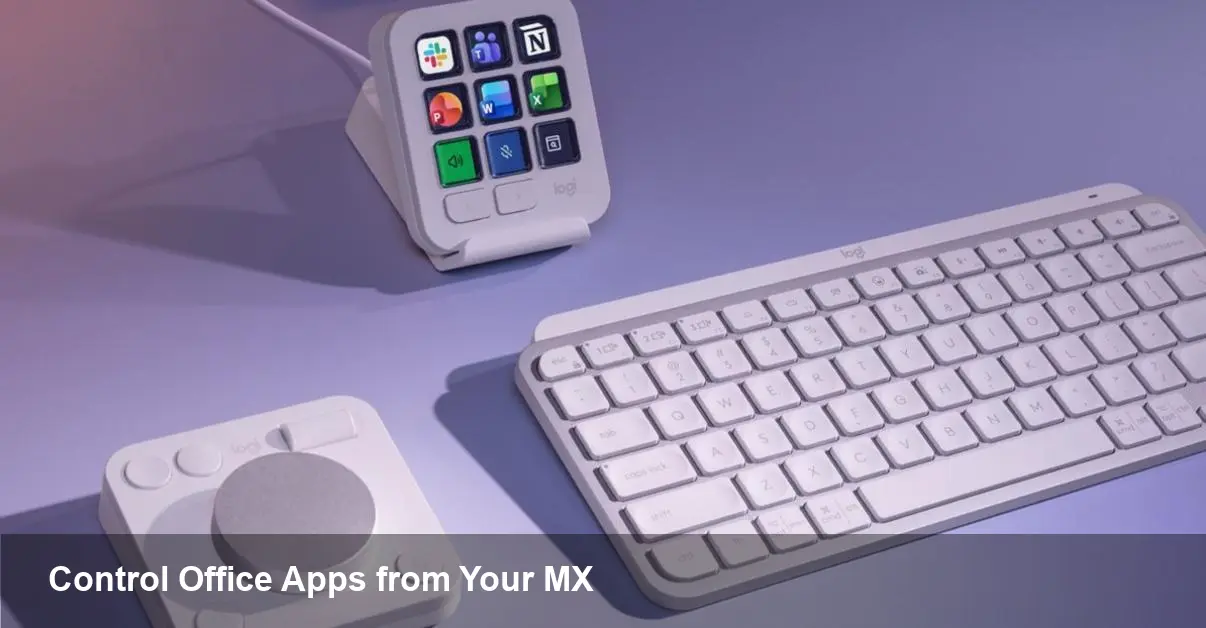
Logitech has expanded the capabilities of its MX line by introducing Productivity Plugins in the MX Creative Console, letting MX keyboards and mice expose app-specific shortcuts and tools directly on the hardware. Instead of memorizing keyboard shortcuts or hunting through menus, common actions in Microsoft Office, Slack, and Notion are accessible through device controls, stream dials, and on-screen overlays.
For professionals who live in productivity apps, this reduces friction: fewer context switches, faster repetitive tasks, and a more natural tactile interface for software actions.
Quick primer: MX Creative Console and Productivity Plugins
Logitech’s MX family — the MX Master mice and MX Keys keyboards — have long focused on workflow ergonomics and customization. The MX Creative Console is the software hub where users tune gestures, assign keys, and now add Productivity Plugins that bind app features directly to hardware elements.
Think of a Productivity Plugin as a small, app-aware control layer. When you’re working in Word, PowerPoint, Slack, or Notion, the console can show and map the most useful commands (formatting, navigation, thread replies, page switching) to your device. Because the console is app-aware, those mappings change automatically when you switch applications.
Practical scenarios — how this helps day-to-day work
- Editing a long report: In Microsoft Word, map “insert comment,” “accept/reject change,” and “apply heading style” to easy thumb buttons and the scroll wheel. You can keep your hands on the keyboard and mouse while quickly marking up a document.
- Presenting or preparing slides: Assign slide forward/back, laser pointer, or transition previews to a gesture or dial on an MX mouse. That keeps you in control during rehearsals or live presentations without fumbling for the trackpad or keyboard shortcuts.
- Managing chat overload: In Slack, map quick-reply, emoji reaction, or jump-to-thread actions to dedicated keys. When a message needs only a thumbs up or a short ack, you can respond faster and return to focused work.
- Notion navigation: Use device shortcuts to toggle page outlines, create new blocks, or jump to the search box. For heavy Notion users who jump between databases and nested pages, this saves repeated clicks and scrolling.
Concrete example: imagine a content editor working on a Word draft. The MX mouse’s thumb button toggles comments view, the scroll wheel cycles tracked changes, and a keyboard FN row button inserts predefined formatting. What would normally take several keystrokes or mouse movements becomes a single tap.
Developer, IT and admin considerations
For developers and IT teams, this shift raises operational questions and opportunities:
- Deployment and configuration: Enterprises will want centralized profiles. If your organization standardizes on Microsoft Office and Slack, pre-configured MX profiles can be pushed to teams to ensure consistent behavior and reduce setup time.
- Extensibility: The current rollout focuses on popular productivity apps. If Logitech exposes APIs or a plugin SDK, internal tooling teams could build bespoke mappings for line-of-business applications — opening possibilities for custom macros and hardware workflows optimized for specific roles.
- Security and compliance: Any software that reads app context or triggers app actions should be evaluated for data governance. IT should verify what permissions the MX Creative Console requires and how it handles telemetry and command execution, especially in regulated environments.
Benefits and trade-offs
Benefits:
- Reduced cognitive load: Hardware-mapped actions reduce the need to remember and type complex shortcuts.
- Faster repetitive workflows: Tasks like commenting, formatting, and navigation become faster through one-touch controls.
- Smoother presentations and demos: Physical dials and buttons are more reliable than touch gestures when presenting.
Trade-offs and limitations:
- Platform parity: Behaviour may differ across macOS, Windows, or Linux, depending on Logitech’s software support.
- Learning and discoverability: Users must learn new mappings; poorly chosen defaults can be confusing.
- Software dependency: Functionality depends on the MX Creative Console running in the background; corporate policies or endpoint protections might block it.
Who benefits most
- Writers and editors who manage tracked changes and comments.
- Designers and presenters using slides and rapid toggles.
- Customer success and support reps who handle chats and need quick canned responses.
- Knowledge workers heavy in Notion, Jira, Slack, or Office apps who want fewer context switches.
Casual users may not notice much difference, but for power users and teams that perform repetitive in-app operations, the productivity lift can be measurable.
Pricing, rollout and what to test first
Logitech has rolled the Productivity Plugins into the MX Creative Console distribution for MX users. There’s no universal pricing barrier beyond owning MX-compatible hardware; the value is in tuning profiles and creating team standards.
If you’re piloting this in a team, test three things first:
- Which repetitive tasks add the most time savings (comments, thread replies, navigation).
- Whether the MX console runs reliably across your endpoint OS fleet.
- How mappings interact with existing accessibility settings and assistive tech.
What this implies for the future of peripherals
- Peripherals-as-workflow-platform: Devices are shifting from generic input tools to platform-aware workflow enhancers. Expect more manufacturers to create app-aware experiences.
- Marketplace and third-party integrations: If Logitech or competitors open plugin SDKs, we’ll see verticalized devices tailored to CRM, IDEs, design suites, and bespoke apps.
- AI augmentation at the hardware level: Physical controls could trigger AI-assisted actions — for example, a single button to generate a draft reply, summarize a thread, or apply stylistic edits powered by on-device or cloud models.
Practical recommendation
Start with a short pilot: map the top three repetitive actions for a small team and measure time saved and user satisfaction. If the pilot succeeds, expand with standardized profiles and consider whether an internal plugin (if possible) would automate specialized tasks.
Logitech’s move makes sense for anyone who wants to move away from shortcut memorization toward tactile, context-aware controls. For teams, it’s a chance to re-evaluate workflows and offload small but frequent tasks from cognitive load to hardware.