Xbox Mode Expands Across Windows: What It Means for Gamers and Developers

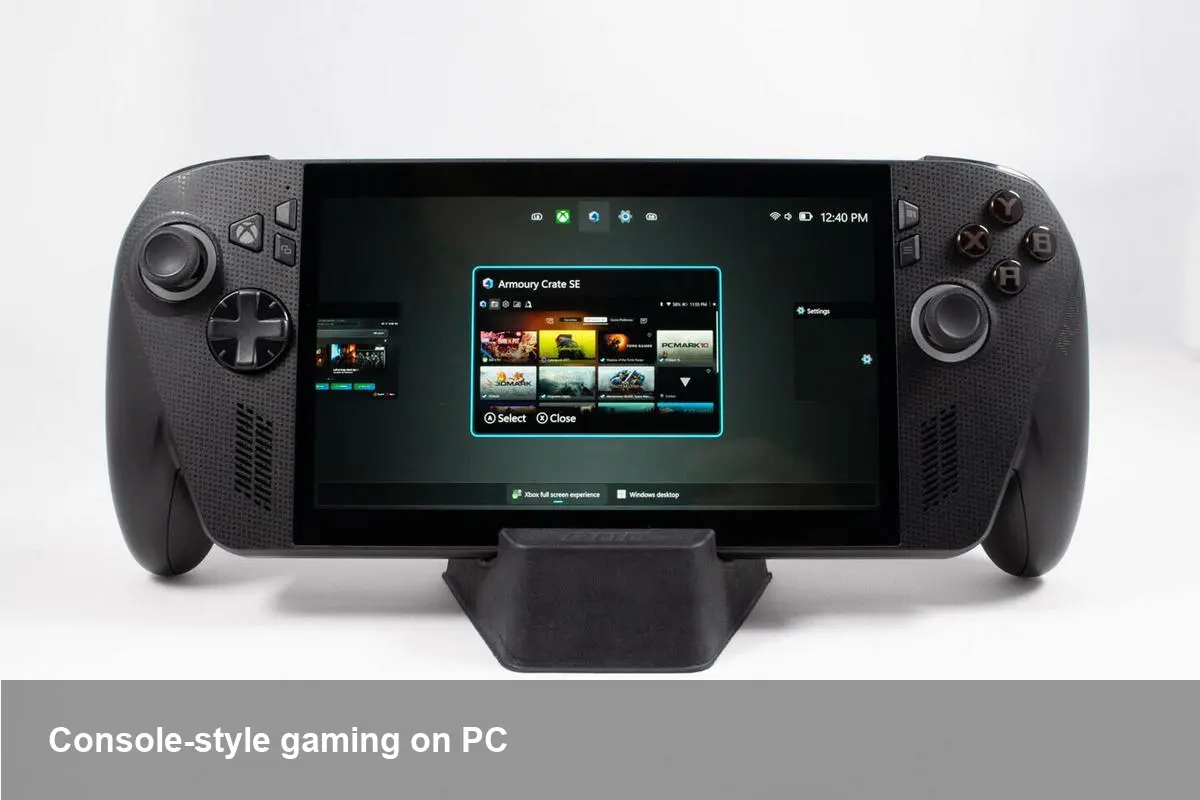
Why Microsoft is pushing a console UI across Windows devices
Microsoft has quietly been reshaping how Windows hosts games. What started as an experiment — a full-screen, console-like gaming surface tightly integrated with Xbox services — is evolving into a feature Microsoft now calls “Xbox Mode.” The company is rolling that experience out beyond handheld devices to mainstream laptops, desktops, and tablets running Windows.
This change is more than cosmetic. It signals Microsoft's continued effort to blur the line between PC and console ecosystems, making it easier for players to jump into games in a dedicated, distraction-free environment while boosting the discoverability and reach of Xbox features across a broader set of hardware.
What Xbox Mode brings to a Windows PC
Xbox Mode is essentially a reimagined full-screen interface optimized for gaming sessions. Key aspects you should know:
- A console-like UI: The interface is designed around game discovery and play — bigger artwork, simplified navigation, and a persistent, game-focused layout that feels more like an Xbox console than a typical Windows desktop.
- Tighter Xbox app integration: Expect easier access to your Xbox profile, friends list, achievements, Game Pass catalog, and cloud-saves without juggling multiple windows.
- Display and input options: On handhelds the update introduced new display settings. On laptops and tablets this typically means straightforward toggles for scaling, HDR, and input handling so games behave consistently when you switch from desktop to Xbox Mode.
- Full-screen-first workflow: Notifications, background apps, and windowed distractions are deprioritized so a gaming session can stay immersive.
If you’ve used an Xbox console, the UI will feel familiar. For PC-first players, it’s a way to get a single-pane, curated gaming experience without leaving Windows.
Practical scenarios: who benefits and how
- Casual players who want immediacy: Someone who uses a Windows laptop for work but plays an hour of games nightly can launch Xbox Mode and instantly be in a dedicated gaming environment — no hunting through Start menus or arranging windows.
- Streamers and content creators: Switching into a consistent, full-screen UI simplifies overlays and capture workflows. Xbox Mode’s cleaner input handling can reduce accidental background interruptions while recording or broadcasting.
- Developers and QA teams: Game teams can use Xbox Mode to validate how UI and input behave in a console-like surface, especially important for titles targeting both Xbox consoles and Windows storefronts.
- OEMs and hardware makers: Laptops marketed for gaming get a more unified selling point. Manufacturers can advertise a built-in Xbox-like experience that leverages Game Pass and Xbox services as part of the device value prop.
How this affects workflows for developers and studios
For developers building or porting games to Windows, Xbox Mode introduces both opportunity and requirements:
- UX testing in multiple modes: Games might need small adjustments to menus or resolution handling to look polish when launched via Xbox Mode. Developers should test in both standard desktop mode and Xbox Mode to catch layout or input assumptions.
- Certification and storefront considerations: If the Xbox app becomes a common launch surface, discoverability via that channel could influence release strategies. Studios may want to align promotional assets and store presence to the larger tiles and artwork styles Xbox Mode surfaces.
- Cloud and cross-save validation: Titles using cloud saves or cross-progression should be validated since Xbox Mode will promote play continuity across devices.
Overall, incorporating Xbox Mode testing into QA cycles will reduce user friction and deliver a more consistent experience across Microsoft’s gaming ecosystem.
Business value and what OEMs should care about
OEMs already bundle or tune drivers for gaming laptops; Xbox Mode gives them another integration layer to differentiate hardware:
- Better out-of-box experience: Pre-configured display and power settings tailored for Xbox Mode reduce configuration headaches for first-time gamers.
- Increased Game Pass engagement: By making Game Pass features more visible and accessible at the OS level, device makers can help boost subscription usage — improving the perceived value of gaming PCs.
- Market segmentation: Ultrabooks, hybrids, and 2-in-1s that support both productivity and gaming can advertise a polished, console-like play mode without forcing users to buy a dedicated gaming rig.
However, OEMs must ensure driver compatibility (GPU, display scaling, HDR) and that firmware doesn’t interfere with Xbox Mode’s intended behavior.
What Microsoft still needs to solve
The rollout expands Xbox Mode’s reach, but it isn’t a cure-all. Remaining friction points include:
- Overlap with Xbox Game Bar: Some players will be confused about when to use the Game Bar, Xbox Mode, or the Xbox app. Clear UI cues and onboarding will help.
- App compatibility edge cases: Older or niche games that make deep assumptions about windowing or alt-tab behavior may misbehave and require per-title fixes.
- Enterprise and managed devices: IT departments will want controls to restrict or tailor this mode on corporate laptops. Microsoft should provide policies for admins.
Where this could lead — three practical implications
- Closer PC-console parity: Expect Microsoft to continue harmonizing the UI and feature set between Xbox consoles and Windows. That helps cross-buy strategies and makes it easier for games to be discovered across platforms.
- Greater emphasis on subscription discovery: With Xbox Mode promoting Game Pass content, studios may see shifts in player acquisition channels — more instant-play trials and impulse sessions on devices that advertise Game Pass prominently.
- A new testing standard for hybrid devices: QA processes will expand to include mode-specific checks, and middleware vendors may add tools to simulate Xbox Mode behaviors for automated testing.
How to try it and what to check
If Xbox Mode appears on your device, give these quick checks:
- Validate display toggles (HDR, scaling) while in Xbox Mode to ensure UI elements aren’t clipped.
- Test input switching (keyboard, mouse, controller) to confirm remapping or dead zones are handled.
- Launch a cloud-synced save to verify progress continuity.
If you’re an IT admin or developer, request group policy options and documentation from Microsoft for controlled deployment.
Xbox Mode brings a more unified, console-like approach to gaming on Windows devices. For players it’s a cleaner, faster path to play; for developers and OEMs it’s another axis to optimize around. The real winners will be teams that treat Xbox Mode as part of the release lifecycle — and device makers who lean into the feature as a differentiator for hybrid and gaming hardware.