Windows 11 Notepad Gains Image Support — What It Means

A small app gets a visual upgrade
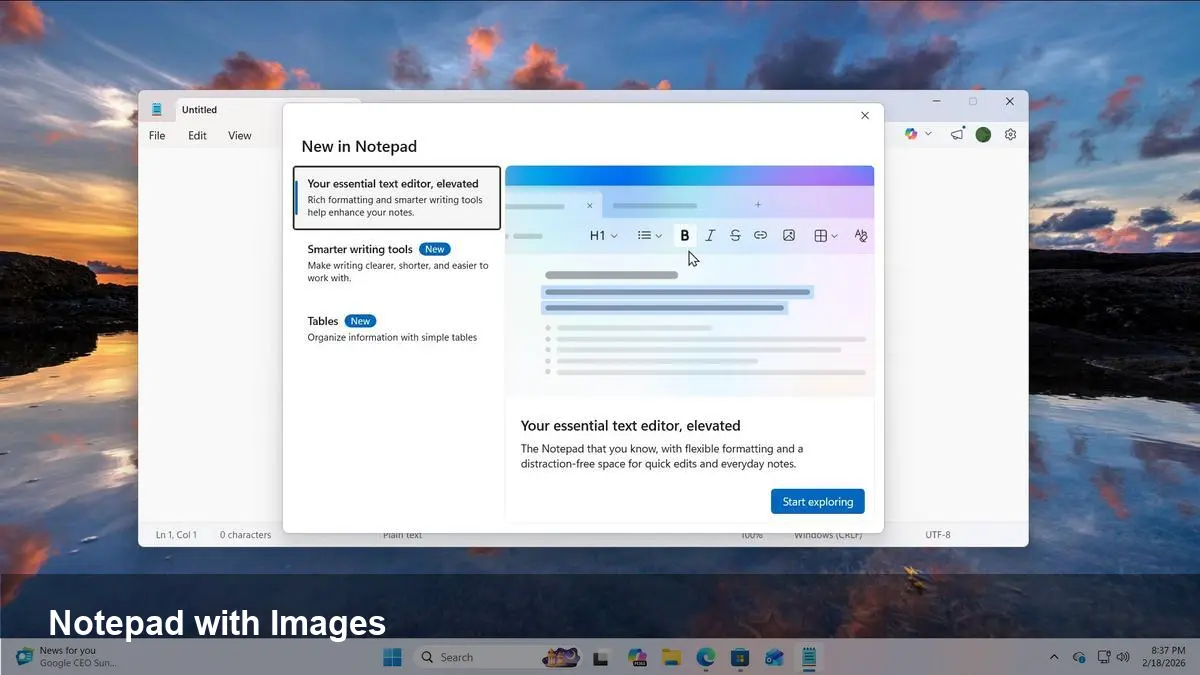
Microsoft is rolling out image support to the Notepad app on Windows 11. For a tool that has been synonymous with plain text for decades, allowing images inside the app is a notable pivot — and one with practical consequences for everyday users, developers, and IT teams.
Here’s a practical look at what this change implies, how you might use it, and where it won’t replace more feature-rich note-taking or document tools.
Notepad’s background: simple, ubiquitous, essential
Notepad has long been the go-to lightweight text editor on Windows: tiny, fast, and predictable. Over recent Windows 11 updates Microsoft refreshed Notepad’s UI and added features like dark mode, performance improvements and undo history, modernizing a familiar utility without making it heavy.
Adding image support is the next step in that evolution — keeping Notepad’s simplicity while bridging a gap between plain-text editing and lightweight visual notes.
What image support could mean in practice
Microsoft hasn’t provided exhaustive technical details about formats or file handling in every consumer announcement. Expect a basic set of capabilities at first, likely focused on support for common image formats (PNG, JPEG, animated GIFs) and simple interactions such as:
- Drag-and-drop or paste from clipboard (screenshots or copied images)
- Inline display inside a Notepad document while the app is open
- Basic resizing or placement controls in the editor (likely minimal)
Important nuance: traditional Notepad saves plain-text (.txt) files. To persist images, Microsoft will need a container format or references to external files. That means images could be stored inside a new Notepad-specific format, embedded as data URIs, or the app may reference linked image files stored alongside a text document. Expect Microsoft to document how Notepad handles saving and compatibility when the rollout hits.
Real-world scenarios where this changes workflows
- Quick bug reports: Paste a screenshot and annotate context in the same Notepad window instead of juggling separate image viewers and text notes.
- Meeting notes: Capture charts or whiteboard photos and keep them inline with typed action items for faster review.
- Lightweight documentation: Draft short how-tos or README-style notes that include tiny diagrams or screenshots without opening a heavier editor.
- Teaching and demos: In live demos, having images inline helps presenters show code snippets and supporting screenshots together.
This will be most useful for short, ad-hoc content. If you need advanced layout, captions, versioning, or rich formatting, a dedicated note app (OneNote, Notion) or a markdown editor will still be a better fit.
Developer and power-user implications
- Clipboard and automation: Developers who automate workflows with scripts or clipboard utilities should watch for new clipboard formats. Tools that previously assumed text-only clipboard content may need updates to detect and handle embedded image data.
- File-format interoperability: If Notepad adopts a container format to save images, tooling that reads/writes Notepad files (backup utilities, version-control preprocessors, diff tools) might need adapters. Expect early community tools or libraries to appear quickly if the format gains traction.
- Extension of lightweight editors: This move nudges the market toward more capable, yet still minimal, editors. Extensions for Notepad (or companion utilities) could appear to export or convert Notepad documents with images into Markdown, HTML, or PDF.
- Accessibility and screen readers: Inline images introduce new accessibility concerns. Developers building automation around Notepad should validate whether alt-text or accessible labels are supported for embedded images.
IT, enterprise, and admin considerations
- Policy & file storage: Enterprises will want to know how images are stored and whether new file extensions will be allowed under existing data-handling policies. Linked images stored elsewhere could create data residency questions.
- Training and support: Helpdesk scripts that assume Notepad is text-only may need updates. Small changes in user behavior (pasting images into Notepad) could increase helpdesk tickets until documentation is updated.
- Lightweight collaboration: For teams that use Notepad for quick notes, this feature can reduce friction by reducing app-switching — but it won’t replace collaboration features like version history and concurrent editing.
Downsides and limitations to keep in mind
- Searchability: Images aren’t text-searchable unless OCR or embedded metadata is added. That reduces the utility of inline images for long-term knowledge management.
- File size and portability: Embedding images will increase document sizes. If Notepad uses a new file type, portability to other systems or older Windows versions could be limited.
- Not a full WYSIWYG editor: Expect image support to be intentionally basic. Users needing layout control, captions, or multi-page documents should stick with word processors or note apps.
- Automation edge cases: Scripts that parse Notepad files may break if they encounter binary or encoded image data in files that used to be plain text.
Three implications worth watching
- Middle ground editors get stronger: The line between plain-text tools and rich note apps keeps blurring. Users who resisted switching to heavier apps may find Notepad compelling for quick visual notes.
- New ecosystem tooling: If Microsoft introduces a Notepad file format that supports embedded images, expect converters, viewers, and integrations from the community and third parties.
- Clipboard becomes more important: Robust clipboard handling will be a differentiator. Utilities that let you selectively paste text or images, or extract images from mixed-content clips, will see renewed interest.
How to prepare now
- If you’re an IT admin, ask Microsoft for documentation on the rollout and test how Notepad saves image-containing documents in your environment.
- If you rely on text-processing workflows, set up a small sandbox to see how your tools behave with image-enabled Notepad files.
- For everyday users: try the feature for quick notes, but continue using OneNote, Word, or Markdown tools for anything that needs structure, long-term storage, or collaboration.
Notepad’s move to support images is a modest but meaningful upgrade: it keeps the app’s lightweight DNA while addressing a common, everyday annoyance — the need to juggle screenshots and text. For many people, it will shave seconds off routine tasks; for others it will be the start of a slow shift in how simple editors are used. Either way, it’s one more sign that small apps are getting smarter about the real-world ways people work with text and images together.