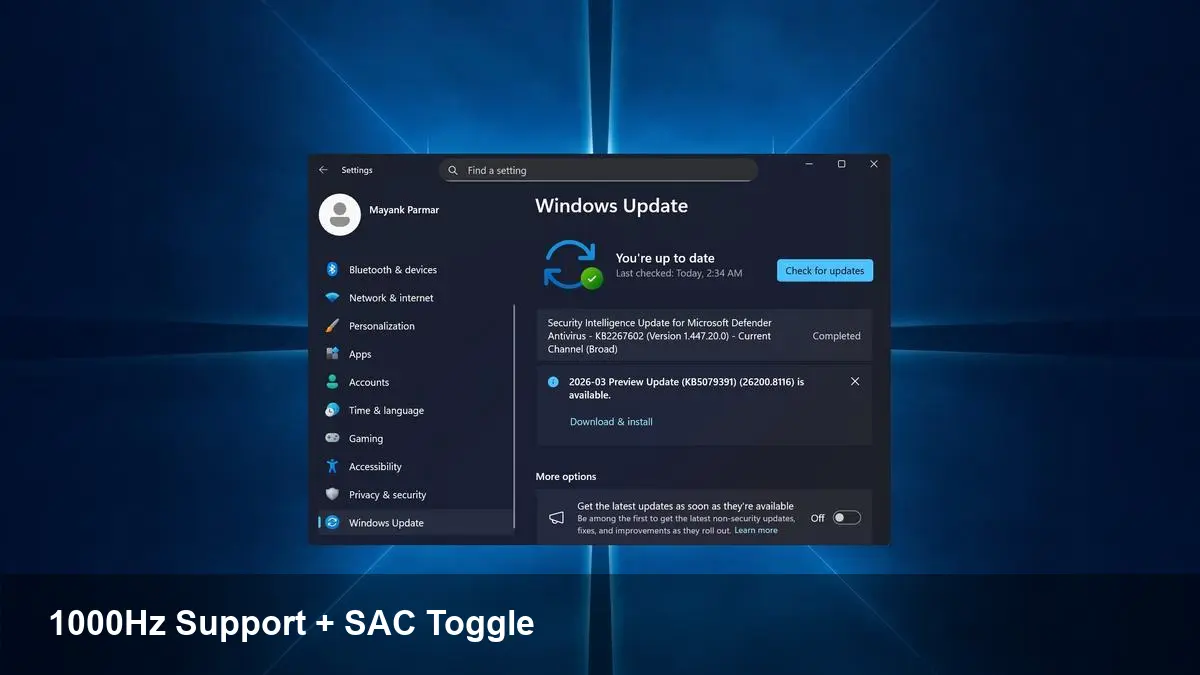
KB5079391 Brings 1000Hz Support and SAC Toggle to Windows 11

Why this update matters
Microsoft has rolled out KB5079391 for Windows 11, a relatively small but strategically useful cumulative update that touches both hardware support and security configuration. Two changes stand out: native support for 1000 Hz refresh rates and the ability to enable or disable Smart App Control (SAC) without having to reinstall the OS. For organizations and power users these shifts reduce friction — for gamers and peripheral makers they clear a path to lower-latency setups.
Below I break down what those changes mean in practice, show where offline installers (.msu) fit in for IT teams, and outline realistic scenarios where you’d notice an immediate difference.
1000 Hz support: not just a marketing number
High refresh rates have long been a selling point for gaming monitors and competitive peripherals. Traditionally, Windows’ display and input subsystems optimized for common ranges (60–240 Hz), and driver stacks were the limiting factor for anything beyond that.
With KB5079391, Windows 11 includes support for 1000 Hz refresh rates. Practically, that helps two classes of devices:
- Ultra-high-refresh displays: If you’re using bleeding-edge monitors that advertise refresh rates approaching 1000 Hz, native OS support reduces the risk of timing mismatches, frame pacing glitches, or driver-level workarounds.
- Competitive input devices: Many pro gaming mice operate at 1000 Hz polling rates (or higher) — improved OS handling can lower input latency and make motion and click reporting more consistent.
Concrete example: An esports player using a high-end rig with a 1000 Hz-capable monitor and a pro mouse should see smoother, more consistent input-to-display timing. That may translate into slightly lower perceived latency and fewer micro-stutters during fast camera pans — not a dramatic overhaul, but meaningful at the margins where competitive players operate.
Caveat: achieving the benefit requires compatible hardware and up-to-date drivers from OEMs. If a manufacturer’s driver or firmware hasn’t been updated for extreme refresh modes, Windows support alone won’t magically enable flawless performance.
Smart App Control: toggleable without reinstall
Smart App Control (SAC) is a Windows 11 security feature that blocks untrusted applications using a mix of reputation signals and AI-based checks. Previously, switching SAC from enforced to off (or vice versa) could be painful — in some configurations, the only reliable path was a system reinstall or a complex recovery flow.
KB5079391 changes that: SAC can now be switched on or off directly through the Settings experience without wiping or reinstalling Windows. That’s a quality-of-life improvement for a few important groups:
- Developers and testers: When testing unsigned builds or experimental installers, you can temporarily disable SAC on a test machine and re-enable it when finished, without having to rebuild an image.
- Enterprises: IT teams can pilot SAC in selective environments, toggle it for a group of users, and roll it back quickly if compatibility issues surface with line-of-business software.
- Power users: If SAC blocks a legitimate tool, you can evaluate and restore functionality faster, reducing downtime.
Security trade-off: toggling SAC off reduces a protective layer. For enterprise rollouts, combine toggling with policy controls (via MDM or Group Policy) and thorough app vetting rather than simply turning SAC off on production devices.
Offline installers (.msu) and real-world deployment
Microsoft provides the update as an .msu package (the standalone Windows Update Standalone Installer format). That matters because .msu files let system administrators and users install the patch without an internet connection to Windows Update.
When to use .msu installers:
- Air-gapped environments: Regulated facilities, laboratories, and some manufacturing systems can’t reach Windows Update; .msu files let admins bring updates in on removable media.
- Controlled testing: Put the update into a staging pool, validate with your apps and drivers, then deploy through your chosen management pipeline (SCCM, Intune, WSUS).
- Emergency fixes: If a particular machine needs the KB right away, you can apply the .msu directly rather than waiting for automatic rollouts.
How IT teams usually handle this: Download the .msu from Microsoft Update Catalog or your vendor portal, test it on representative hardware, then import to WSUS/SCCM or distribute via Intune. Always maintain a rollback or snapshot strategy when patching critical systems.
Practical steps for different audiences
- Gamers: Check your monitor and mouse firmware and graphics drivers. If you have hardware that claims ultra-high refresh or extremely high polling rates, install the update, then run your monitor’s OSD and GPU control panel to confirm refresh settings.
- Developers: Try toggling SAC on a disposable VM and run your unsigned builds. If a dev tool is blocked, use the new toggle to test behavior without reimaging.
- IT admins: Retrieve the .msu for offline deployment into your update repository. Pilot on a small set of endpoints before broad rollout. Ensure compliance policies are updated if you plan to permit SAC toggling for users.
Two quick limitations to be aware of
1) Hardware/driver dependency: Native OS support is necessary but not always sufficient — vendors must provide compatible drivers and firmware for the full experience at extreme refresh rates. 2) Security posture: Making SAC toggleable improves manageability but also increases the chance of misconfiguration. Controls at the management layer remain essential.
Looking ahead: what this signals for Windows
- Microsoft is prioritizing lower-latency, high-refresh hardware compatibility — expect more incremental updates to support niche but performance-critical peripherals.
- Security features are becoming more flexible: more granular toggles and management hooks for features like SAC reduce friction for adoption while keeping enterprises in control.
- Offline update workflows aren’t going away. Even in a cloud-first world, standalone installers and catalog-driven distribution remain important for regulated industries and complex IT estates.
If you rely on bleeding-edge gaming hardware, manage devices in locked-down environments, or ship apps that might trigger security heuristics, KB5079391 is worth testing. It’s an example of an update that’s modest in scope but practical in effect — smoothing the path for performance-minded users and giving IT teams more control over security settings.