How Copilot agents on the Windows 11 taskbar reshape workflows

A fast tour: what Microsoft is adding to Windows 11
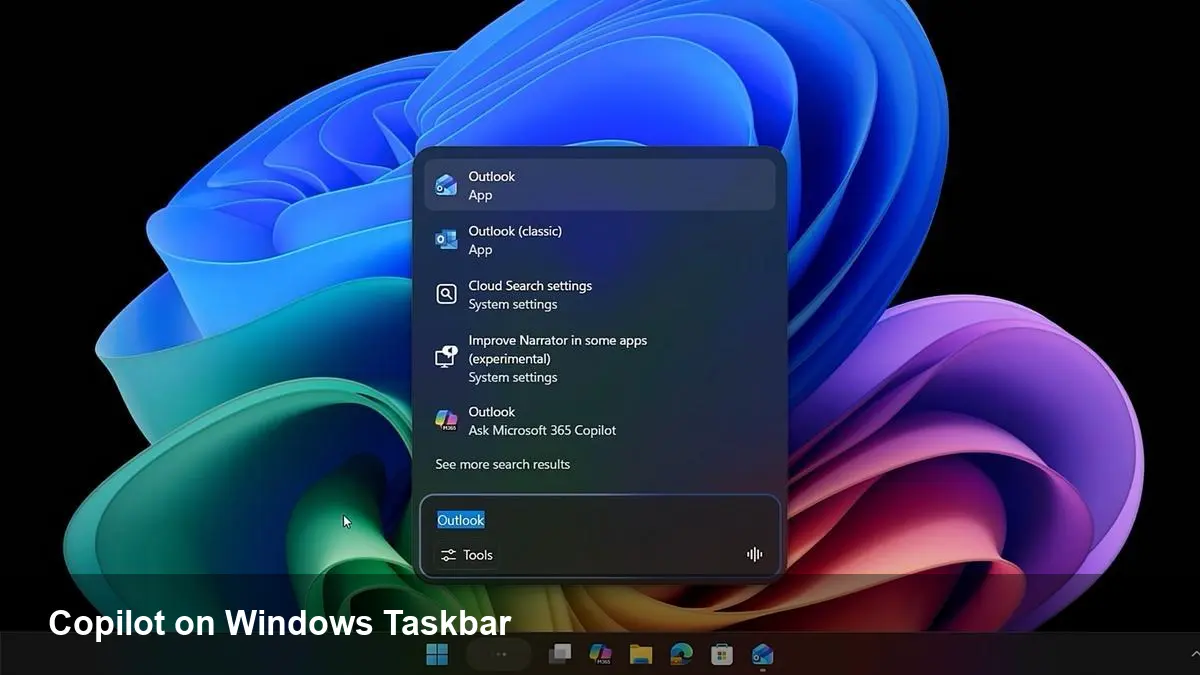
Microsoft has been pushing Copilot beyond a chat box. The newest demonstrations show AI “agents” appearing directly on the Windows 11 taskbar and inside File Explorer through an optional feature called Ask Copilot. Instead of opening a browser or separate app to run an AI prompt, these agents are designed to surface suggestions, summarize context, and execute small tasks in-place — effectively turning the OS shell into an intelligent assistant layer.
That matters because the taskbar is the most persistent surface in Windows. Placing actionable AI there reduces friction: fewer context switches, faster answers, and new ways to interact with local and cloud content.
What the taskbar agents and Ask Copilot actually do
The new agents are context-aware micro-assistants. Expect capabilities like:
- Natural-language search that replaces or augments classic Windows Search (Ask Copilot is optional and can replace the search box).
- Instant summarization of documents or folders you have open or select in File Explorer.
- Quick actions generated from context — e.g., create a meeting note from an email, extract key lines from a file, or suggest commands for PowerShell based on a selected folder.
- Conversational follow-ups: you can ask clarifying questions without losing your place in the UI.
These agents are not monolithic; they’re intended to be task-focused and persistent on the taskbar, ready when you click or query them.
How File Explorer integration changes daily work
File Explorer is where a lot of work happens: sorting downloads, hunting for project folders, or triaging client deliverables. Copilot integration alters three practical areas:
- Faster find and act: Instead of searching for a file and then opening multiple apps to see its contents, Copilot can summarize or extract insights from files listed in Explorer.
- Batch operations via natural language: Ask for “all invoices from March” or “rename these files to clientProjectmm-dd” and let the agent propose or run a safe operation.
- Context bridging: Copilot can combine folder context with cloud sources (OneDrive, SharePoint, Teams) to present unified results without jumping between apps.
For knowledge workers and media teams, this can shave minutes off repetitive tasks and reduce the cognitive cost of switching between search and action.
Concrete scenarios — three quick examples
- Product manager: Selects a folder of user research transcripts, asks Copilot to summarize common themes, and gets a bullet list ready to paste into a roadmap doc.
- Dev on a tight deadline: Searches the taskbar with a natural-language query like “how to fix missing DLL error in X project”; Copilot surfaces local log snippets, relevant docs, and a recommended PowerShell command that the developer can adapt.
- IT admin: Uses Copilot to find devices with a specific policy tag across management consoles and generates a CSV with remediation steps.
Each example shows how the assistant reduces the time between question and action.
What this means for developers and integrators
If Microsoft opens APIs for these agents, expect a new integration surface for apps and services:
- App developers could expose semantic hooks so Copilot understands app-specific data (e.g., project metadata in IDEs or customer records in CRM apps).
- Enterprise connectors will be important. Copilot’s value on the taskbar grows with access to corporate data (via Microsoft Graph, SharePoint connectors, or third-party integrations).
- UI patterns will shift: instead of building heavyweight in-app search, product teams might expose lightweight metadata endpoints that the OS assistant can query.
For independent software vendors, this is both an opportunity (new distribution channel for capabilities) and a design challenge (controlling how your app’s data is surfaced and securing what can be accessed).
Trade-offs, privacy and performance considerations
The convenience is real, but there are trade-offs to plan for:
- Privacy and data governance: Agents that summarize or index files need clear policies. Enterprises must decide whether Copilot can access local files, SharePoint, or only cloud-indexed content. Data residency and chain-of-custody concerns will be top of mind.
- Resource and battery impact: Persistent AI features that index and summarize can increase CPU, memory, and disk usage — something to watch on older laptops and tablets.
- Security and attack surface: Any assistant that executes suggested commands (PowerShell snippets, batch renames) raises the stakes. Enterprises should enforce consent, logging, and allowlist/denylist controls.
Administrators should expect Group Policy and Intune controls to manage deployment, telemetry, and access.
How IT teams and product leaders should prepare
- Pilot scope: Start with a small user group and measure time saved on common tasks plus any unexpected helpdesk tickets.
- Policy stance: Define a clear policy on Copilot’s access to corporate data. Use conditional access controls and audit logs where possible.
- Training and UX updates: Update onboarding and internal docs to show when to use the taskbar agent versus in-app tools to avoid duplicated workflows.
- Performance monitoring: Track battery, CPU, and memory metrics before and after enabling agents on a sample fleet.
These steps keep adoption pragmatic and measurable.
Three implications for the next two years
- Desktop-first assistants will be normalized. Expect other OS vendors and app platforms to add similar persistent AI helpers that blur the line between system UI and app functionality.
- Search will shift toward tasks. Natural-language, action-oriented results (e.g., “summarize”, “extract”, “run this”) will become the primary interaction model for finding and manipulating content.
- New integration APIs will create an ecosystem. If Microsoft exposes safe, documented hooks, third-party apps will optimize metadata and actions for Copilot, creating a wave of “assistant-aware” software.
Practical takeaway
Copilot agents on the taskbar and File Explorer reframe how we find and act on information in Windows 11. For individuals, it promises time saved and fewer switches between apps. For businesses, it introduces governance and performance decisions that should be handled deliberately. Pilot thoughtfully, tune policies, and look for opportunities to expose richer metadata from your apps so the assistant can do more useful work for your users.
How would this change your team’s day-to-day? Try a scoped pilot, and measure the disruptions as closely as the productivity gains.