Android 17 Beta 3 Brings Back Single-Tap Wi‑Fi Control

A small change that matters
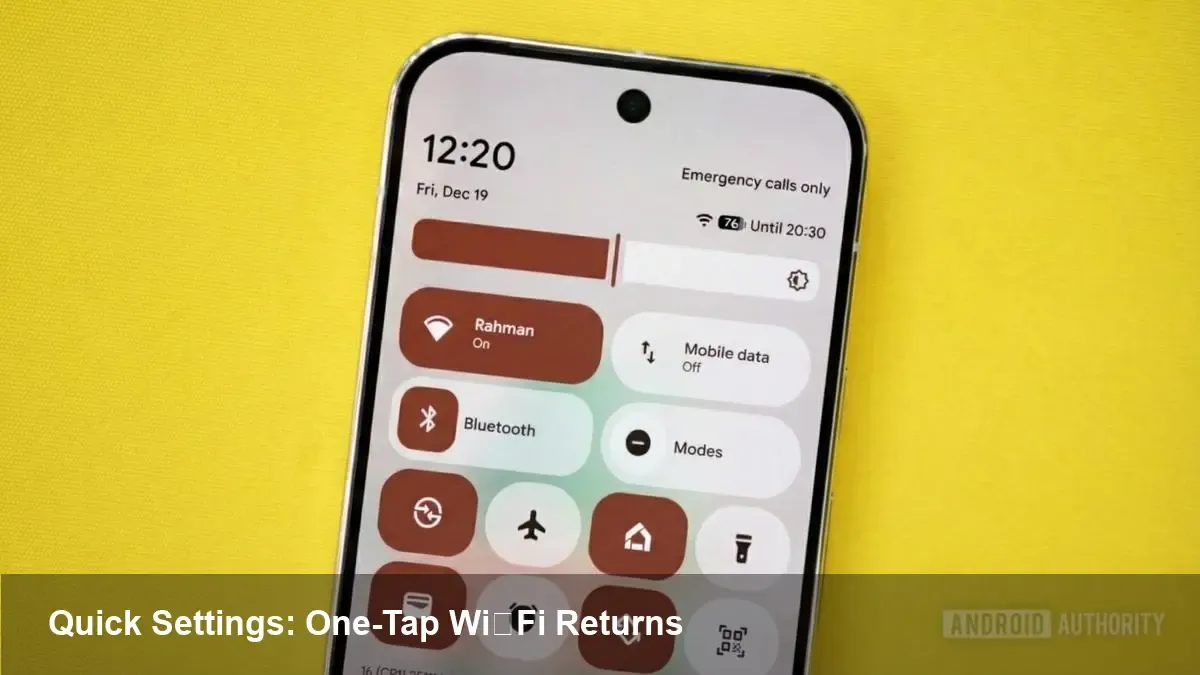
Google recently pushed Android 17 Beta 3 to eligible Pixel devices and one of the most noticeable tweaks isn’t a flashy AI feature or a redesigned home screen: the Wi‑Fi tile in Quick Settings once again toggles Wi‑Fi with a single tap. That behavior had been changed in a prior release, forcing a second tap or opening the full network sheet. Restoring the one‑tap toggle is a simple ergonomics win — but it also has implications for everyday users, developers, and enterprises.
What exactly changed
In Android 17 Beta 3 the Quick Settings Wi‑Fi tile acts like a traditional toggle: a single tap turns Wi‑Fi off or on. Previously, tapping the tile first opened the Wi‑Fi quick network sheet or required a separate action to switch connectivity, adding friction for routine tasks. The Beta 3 adjustment returns to a quicker interaction model while still allowing access to detailed network controls via a long press or the expanded sheet.
This update is rolling out through the Pixel beta channel to compatible devices; if you’re enrolled in the Pixel Beta Program you’ll see the OTA. If not, the change will likely appear in wider developer previews and final Android 17 builds later in the release cycle.
Why this matters for everyday users
- Faster control: One tap means you can disable or enable Wi‑Fi immediately — useful in meetings, on flights, or when troubleshooting connectivity.
- Fewer accidental menu opens: The previous two‑step behavior sometimes left people in the networks list when they only wanted to toggle Wi‑Fi.
- Battery and privacy control: Quick toggles make it simpler to cut radio activity when you want to save battery or reduce network exposure.
Practical examples:
- You’re switching between cellular and Wi‑Fi while taking a call: a single tap avoids fumbling through menus.
- A Wi‑Fi network is misbehaving at a café; quickly toggling Wi‑Fi can force a reconnection without digging into settings.
- Parents managing a device for a child can rapidly disable Wi‑Fi during homework time.
What developers should know
This is primarily a system UI behavior change rather than an API alteration, but it affects how users interact with network state and what your apps should expect:
- Don’t rely on the Quick Settings tile to perform app-specific workflows. Users may toggle connectivity at any time; handle abrupt disconnects gracefully.
- Use ConnectivityManager and network callbacks to respond to changes. Relying on polling or assumptions about user intent will lead to flaky behavior.
- Test background tasks and network retries against quick, repeated toggles. A rapid off/on sequence is a common real‑world pattern that can expose race conditions.
For apps that provide network diagnostics or connection helpers, consider adding a clear prompt explaining how Quick Settings toggles affect the app’s behavior — users appreciate transparency when the OS takes control away from an app.
Enterprise and IT considerations
For mobile device management (MDM) and enterprise fleets the change has modest but real implications:
- Remote troubleshooting: IT teams often instruct users to toggle Wi‑Fi. Restoring the single‑tap toggle reduces friction during remote support calls.
- Policy enforcement: Some corporate policies manage Wi‑Fi profiles or captive portals; ensure your enterprise MDM handles rapid state changes and that devices reapply required configs after a toggle.
- Training and documentation: Update internal support docs and quick guides to reflect the restored interaction so endpoints don’t waste time on unnecessary steps.
Usability tradeoffs and accessibility
One‑tap toggles are faster, but they can increase accidental toggles for users with motor challenges or when Quick Settings are accessed inadvertently. Android’s Quick Settings design still offers ways to reach the network sheet with a long press, and accessibility services can help prevent unintended actions. If you’re designing UI elements that rely on stable network conditions, provide confirmations or retry strategies rather than assuming connectivity.
How to try it now
- Enroll an eligible Pixel device in the Pixel Beta Program (if not already enrolled).
- Accept the OTA update when it becomes available or sideload the beta image only if you’re comfortable with dev builds.
- After updating, pull down Quick Settings and tap the Wi‑Fi tile — it should toggle on and off with a single tap; long‑press or expand to see network details.
If you manage multiple devices in a test lab, keep a set aside for beta builds to validate app behavior under the new system UI flows.
What to test (for app and QA teams)
- Background upload/download resilience when Wi‑Fi is toggled rapidly.
- Reconnection logic for persistent sockets and WebSocket clients.
- User flows that assume network presence at specific checkpoints (e.g., onboarding, purchases).
- Interaction with VPNs and captive portal flows after toggling Wi‑Fi.
Broader implications and what comes next
- Expect a continued focus on restoring and refining common interactions. Google’s return to a single‑tap flow suggests user feedback prioritized speed and simplicity.
- System UI refinements like this raise expectations for predictable, low‑friction controls across other quick tiles (Bluetooth, Do Not Disturb, Mobile Data). Watch for consistent behavior patterns in subsequent betas.
- Developers and enterprise admins should prepare for more fluid user control over radios. That means building apps and policies that tolerate sudden connectivity changes and provide clear user guidance.
This is a tidy usability win for the Android ecosystem: a small change, but one that reduces friction in daily phone use. If you’re a developer or admin, use the beta window to validate how your apps and policies behave when Wi‑Fi can be toggled with a single tap — it’s one of those minor OS tweaks that reveals a lot about real user workflows.