Critical Gmail Setting: Disable Auto‑Forwarding Now

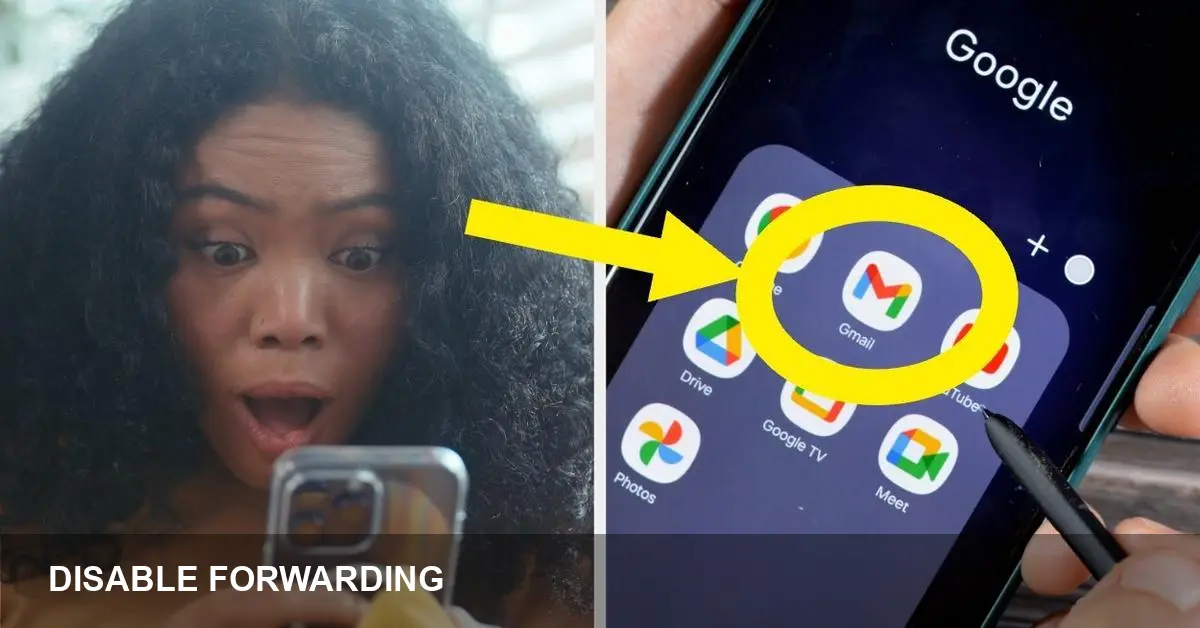
- Auto-forwarding in Gmail can let attackers siphon your email without signs.
- Check Gmail Settings > Forwarding and POP/IMAP and remove unknown addresses immediately.
- Also review Filters, connected apps, change your password, and enable 2-Step Verification.
What to disable — and why it matters
Auto-forwarding routes incoming messages to another email address automatically. If an attacker creates a forwarding rule, they can get copies of your mail even after you change your password or regain access.
Forwarding rules are a common, stealthy way for intruders to exfiltrate data. They can silently forward verification codes, invoices, or sensitive messages to an external address you don’t control.
How to check and disable Gmail auto-forwarding
Open Gmail on the web (desktop browser recommended), click the gear icon, then choose “See all settings.”
Go to the “Forwarding and POP/IMAP” tab. If forwarding is enabled to any address you don’t recognize, click “Disable forwarding” and remove the forwarding address.
Next, open the “Filters and Blocked Addresses” tab. Look for filters that include “Forward it to” or that automatically archive or delete messages. Delete any rules you didn’t create.
Other immediate security steps
Change your Google account password and make it strong and unique. Avoid reusing passwords used elsewhere.
Enable 2-Step Verification (2SV) under Google Account > Security. Use an authenticator app or a security key rather than SMS where possible.
Review connected apps and site access at myaccount.google.com > Security > Third-party apps with account access. Revoke access for unfamiliar or unnecessary apps.
Check recent security events and devices under “Security” to sign out sessions you don’t recognize and remove unfamiliar devices.
If you find a malicious forwarding rule
Remove the forwarding address and any filters that forward mail. Then change your password, review recovery options, and enable 2SV. Consider running a full security checkup at myaccount.google.com/security-checkup.
If sensitive accounts (banking, work email, social) used that Gmail address for recovery, contact those providers and update recovery email/2FA settings.
Final note
Auto-forwarding is a powerful convenience feature but it’s also a high-risk setting if misused. A quick check of your Gmail forwarding and filter rules takes only a minute and can stop silent data theft before it starts.