Teach Your Apple TV Remote to Switch HDMI Inputs — Here's How

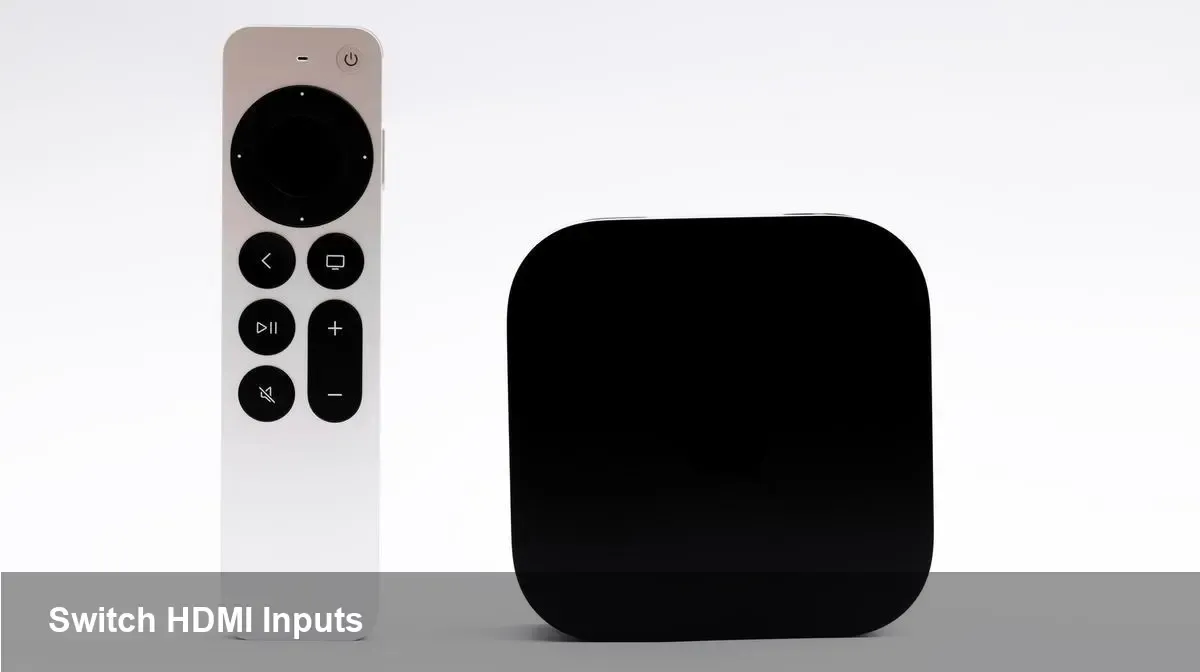
- You can reprogram the Apple TV Siri remote’s mute button to command your TV’s input selector.
- Set this up in Settings > Remotes and Devices > Volume Control > Learn New Device and use your TV remote’s input button when prompted.
- This sacrifices the dedicated mute function and only works if your TV responds to an IR input command or supports HDMI-CEC.
- Alternatives: use HDMI-CEC, the Apple TV remote on iPhone/iPad, or a universal remote (Logitech, Sofabaton) for broader control.
Quick setup: repurpose the mute button
Open Settings on your Apple TV 4K, then go to Remotes and Devices > Volume Control > Learn New Device. When the wizard asks you to teach volume up/down, follow the prompts using your TV remote.
When it prompts for the mute button, press and hold your TV remote’s Input (or Source) button instead. Your Apple TV will learn that signal and map it to the Siri remote’s mute key.
After setup, tapping the Siri remote’s mute button opens the TV’s input menu. Press it repeatedly to cycle through inputs and pause on the one you want; the TV will switch after a few seconds.
Why this trick works
Apple TV’s Learn New Device routine programs infrared codes from other remotes into the Siri remote. By teaching the Input/Source code to the mute button, you get a shortcut for switching inputs without juggling remotes.
Limitations and gotchas
This method removes your mute shortcut — the Siri remote’s mute key will no longer silence audio. If you rely on mute frequently, consider whether the trade-off is worth it.
Not all TVs expose an Input/Source command via infrared, and some smart TVs only accept source switching through their own menus or HDMI-CEC commands. If the Apple TV doesn’t recognize the Input command during learning, try different buttons on your TV remote (some manufacturers label it differently).
HDMI-CEC and when you don’t need this
If your TV or AV receiver supports HDMI-CEC and your Apple TV is connected to a CEC-enabled HDMI port, many basic commands (navigation, play/pause, select) work with the TV remote automatically. HDMI-CEC can also switch inputs in some setups without reprogramming the Siri remote.
Alternatives for consolidated control
You can add the Apple TV remote to Control Center on an iPhone or iPad to control the box without the Siri remote. For broader home-theater consolidation, universal remotes from Logitech or Sofabaton can learn and sequence input, power, and source switching for multiple devices.
Bottom line
If you want to reduce remote clutter and don’t mind losing a dedicated mute key, repurposing the Apple TV Siri remote’s mute button is a quick, built-in workaround for changing HDMI inputs. Try it for a few days to see whether the convenience outweighs the lost mute function, and fall back to HDMI-CEC or a universal remote if you need more robust control.