How to Install Windows 11 Offline Without a Microsoft Account

Why this matters today
Microsoft has nudged Windows 11 toward tighter integration with its cloud services, making a Microsoft account the default during setup on many machines. That’s convenient if you want OneDrive, Settings sync, and Microsoft Store continuity. But not everyone wants or can use a cloud account during initial setup — privacy-conscious users, technicians preparing machines in air-gapped environments, and IT teams imaging devices for secure deployments.
Recently Microsoft updated its Windows 11 ISO tool and related installation media workflows so creating installers that allow offline setup and local accounts is simpler. That change matters for anyone who needs a predictable, network-free installation path.
Quick background: the tools and the change
Microsoft provides official Windows 11 ISOs and a Media Creation Tool to build bootable USB installers. Historically, Home editions strongly promoted a Microsoft account during out-of-box experience (OOBE), and some installers required an internet connection to continue. The update to the official ISO tooling reduces friction for offline installs: it makes it easier to produce media that triggers the local-account path, and it helps teams replicate a non-cloud setup without third-party workarounds.
Why that’s useful:
- Privacy: no immediate account tie-in or cloud sync.
- Offline environments: installs in labs, kiosks, or secure sites without internet.
- Predictability: imaging and unattended setups become easier to script.
Real-world scenarios
1) Home user who wants no cloud account Alice just bought a new laptop and prefers a local Windows account. With the updated ISO tool she can download a fresh Windows 11 ISO, create a bootable USB stick, boot the device and follow prompts that include an explicit offline/local-account path — or disconnect the network during OOBE to force the installer to offer a local account option.
2) IT pro preparing machines for a secure facility A small clinic needs workstations for a closed network. IT downloads the official ISO, creates a USB image, and uses an unattended answer file (unattend.xml) that automates installation and creates a local admin account. No internet required at any point, keeping the process compliant with their security controls.
3) Tech refurbisher and fleet deployment Sam runs a refurb business and processes dozens of laptops weekly. Using the updated ISO media paired with imaging tools, Sam can standardize a local-admin image, avoid per-device cloud sign-ins, and then optionally connect machines to a managed service once they’re handed to customers.
Practical steps (high-level)
Below are safe high-level steps that apply whether you’re a technical user or IT staff. Don’t skip backups and keep licensing information handy.
- Obtain the official Windows 11 ISO
- Use Microsoft’s official download page or the updated Media Creation Tool to get the latest Windows 11 ISO. Choose the correct edition (Home, Pro, etc.).
- Create bootable installation media
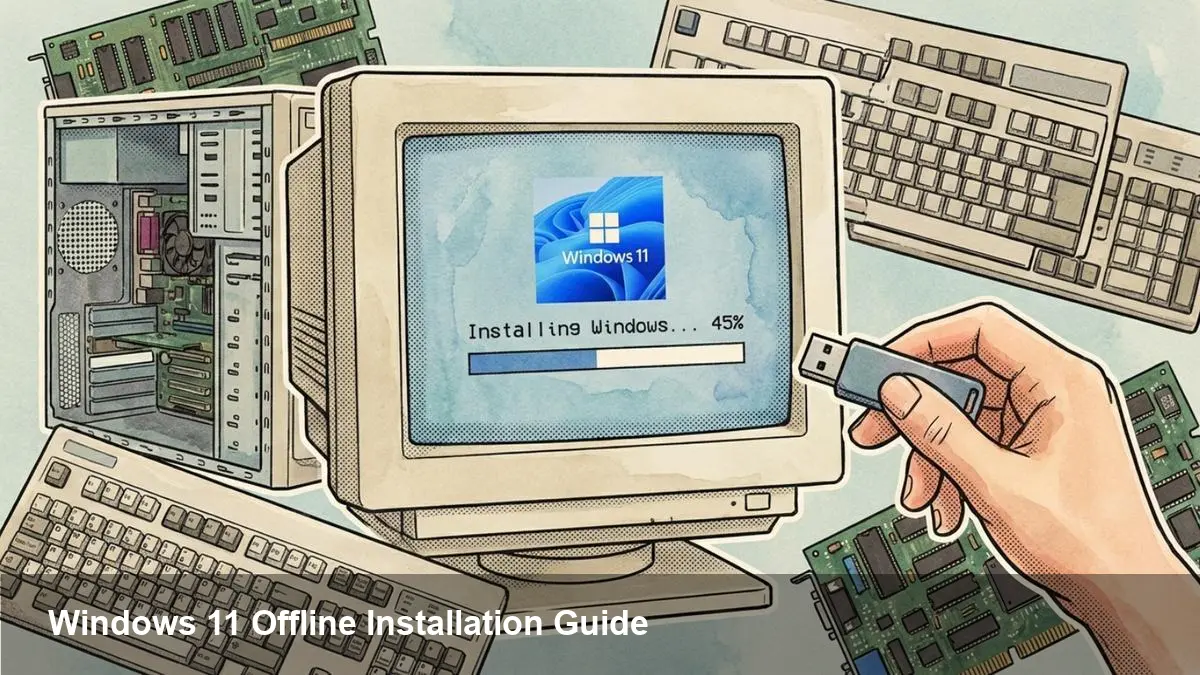
- Use the Media Creation Tool or a USB authoring utility to write the ISO to a USB flash drive. For advanced control, tools such as Rufus let you customize the media creation process.
- Boot the target machine from USB
- Enter the firmware/boot menu, select the USB device and start the Windows installer.
- Choose offline or local-account path during OOBE
- If the installer asks for network access or a Microsoft account, look for an option that allows you to set up an offline/local account. If no such option appears, briefly disconnect networking (unplug Ethernet, remove Wi‑Fi credentials, or disable the adapter); the installer will typically revert to local account creation.
- (IT) Use unattended files or deployment tools
- For repeatable deployments, supply an unattend.xml or use Microsoft Deployment Toolkit (MDT) / Windows Deployment Services (WDS) / System Center Configuration Manager to automate account creation, product key insertion, and other settings without needing internet during setup.
Benefits and trade-offs
Benefits
- Control: You decide whether to bind a device to an online identity at setup.
- Privacy: Avoid immediate telemetry or cloud sync tied to a personal Microsoft account.
- Security compliance: Install in isolated networks without exposing devices to the internet.
Trade-offs
- Convenience features like OneDrive automatic backup, Settings sync, and Microsoft Store purchases won’t be immediately available.
- Some licensing and activation flows can rely on a Microsoft account for convenience; activation still works via digital entitlement, but account-based recovery won’t be present.
- Consumer support guidance often assumes a Microsoft account is used during setup; expect some differences when troubleshooting.
For developers and IT teams: automation pointers
- Unattend.xml: Include user creation and regional settings to fully automate OOBE without network calls.
- Imaging: Capture a reference image with sysprep and apply via MDT or other deployment pipelines.
- Post-install configuration: Use PowerShell scripts or management tools to add cloud accounts later if required.
Limitations and cautions
- OEM customizations: Some manufacturers preload drivers or recovery tools that interact with Microsoft services — be sure the ISO you use matches your device expectations.
- Edition behavior: Historically, the Home edition tends to favor Microsoft account setup more aggressively than Pro; validate the behavior for the edition you’ll install.
- Support and warranty: Changing the setup flow doesn’t affect warranty, but if you modify the system image extensively, check OEM support rules.
What this means going forward
1) Greater user choice: Microsoft loosening the installer’s dependence on cloud sign-in gives users and administrators more control over first-run experience. 2) Better tooling for secure environments: Official support for offline installation media reduces reliance on fragile hacks and helps regulated organizations keep air-gapped processes intact. 3) A balancing act between cloud convenience and local control: Expect future installer refinements to try to present cloud services attractively while preserving an offline pathway for those who need it.
If you manage multiple devices or care about privacy and security, consider building a documented, repeatable installation process now that uses the updated Windows 11 ISO tooling. It reduces surprises during deployment and keeps the choice of cloud integration squarely where it belongs: in the hands of the user or the administrator.