Turn a Galaxy S26 into a High‑Quality PC Webcam

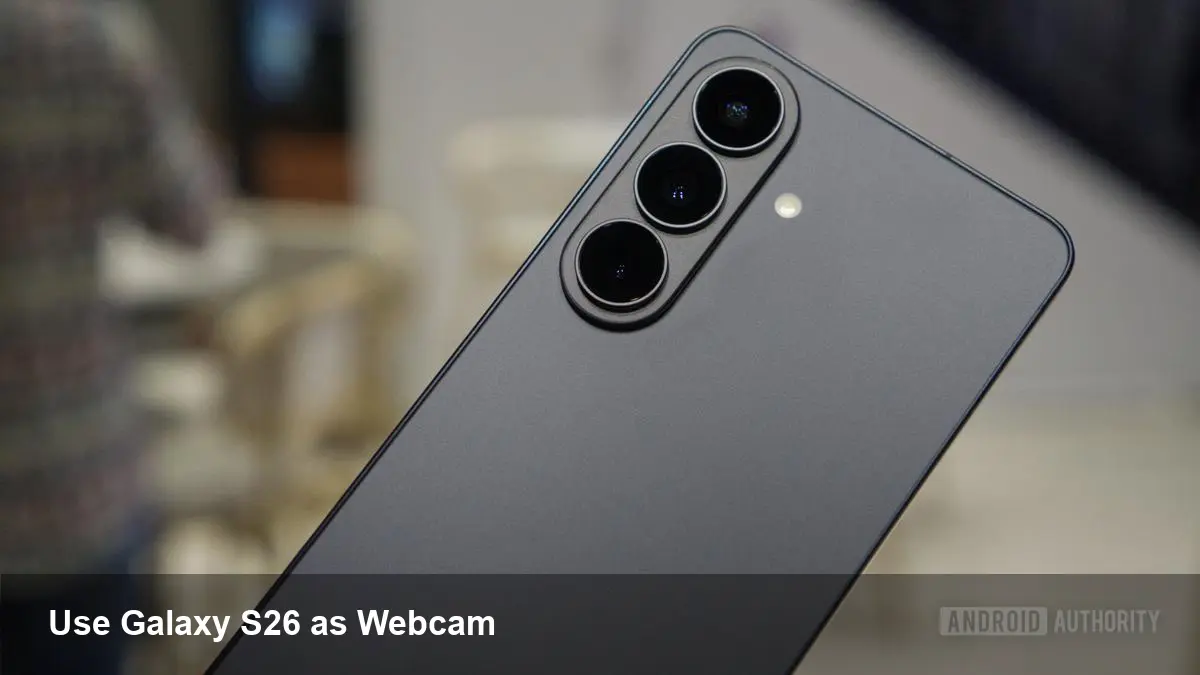
A practical new use for a phone you already own
Samsung’s Galaxy S26 line ships with another practical capability that’s easy to overlook: it can double as a high-quality webcam for your PC. That transforms the Galaxy S26 from a pocket computer into a portable, often better-than-built-in-camera option for video calls, live streams, and video production.
This article explains why this matters, how the experience works in real-world scenarios, what to watch out for, and what it means for developers and businesses.
Why use your Galaxy S26 instead of a webcam?
- Image quality: Modern flagship phone cameras, including the Galaxy S26’s sensors and processing, typically outclass integrated laptop webcams and many standalone webcams in low light, color rendering, and dynamic range.
- Flexibility: You can choose front or rear cameras, move the “camera” around the room, and use phone mounts or tripods to compose shots at angles laptop cameras can’t.
- Cost and convenience: If you already own the phone, you don’t need to buy an external webcam to get an immediate upgrade.
Real example: A remote product manager who needs to demo hardware can mount the S26 above a desk to show close-ups, then switch back to the front-facing camera for a talking-head shot — all without buying specialty capture gear.
How it works (high level)
Samsung provides PC connectivity that exposes the Galaxy S26’s camera feed to your computer as a virtual camera device. In practice you’ll typically:
- Connect the phone to the PC over Wi‑Fi or USB.
- Enable the phone’s camera-as-webcam mode in settings or through Samsung’s PC client.
- The PC-side software or driver appears to the OS and conferencing tools as a webcam (so Zoom, Teams, OBS, Chrome, etc., can select it).
Under the hood this usually relies on a streaming protocol and a small virtual camera driver on the PC. The result is a high-resolution video stream with options to pick resolution, frame rate, and which camera lens to use.
Quick setup checklist
- Mounting: Use a tripod or phone clamp. A cheap desk arm or clip avoids awkward framing.
- Power: Keep the phone plugged in if you expect long sessions — video streaming drains battery and generates heat.
- Connection: USB tends to be lower-latency and more reliable; Wi‑Fi gives mobility but watch for interference.
- Camera selection: Switch to the rear main camera for best image quality, or front camera for convenience.
- App choice: Install Samsung’s PC client if required, then choose the virtual camera inside your meeting or streaming app.
If you stream to OBS or capture software, the phone’s camera will appear as a standard input once the driver is installed, letting you add overlays and scenes like any other webcam.
Best use cases
- Professional calls: Product demos, client video meetings, online interviews where image quality matters.
- Streaming and content creation: Indie streamers can use the phone as a B‑camera or the main camera for higher fidelity video without a big setup.
- Remote teaching and collaboration: Teachers can point the rear camera at physical materials or whiteboards and switch smoothly to talking-head mode.
- Quick video shoots: Capture talking-head videos for social posts without separate camera gear.
Limitations and practical problems
- Heat and throttling: Continuous video streaming stresses the phone and may cause thermal throttling or exposure changes over long sessions.
- Latency: Wireless setups introduce latency; wired USB connections are preferable for interactive calls and gaming streams.
- Driver quirks: Some conferencing apps may not recognize the virtual camera without explicit permissions or driver installation.
- Compression and bandwidth: Over Wi‑Fi the stream may be compressed, so you won’t always get uncompressed DSLR-level quality.
A simple mitigation strategy: use USB for low-latency calls, keep the camera app’s exposure locked if available, and plug the phone into power.
Developer and platform implications
- Virtual camera APIs: By exposing a phone’s camera as a virtual camera device, Samsung enables desktop apps to consume high-quality mobile video without custom SDK integration. That reduces friction for application developers.
- Third-party integrations: Streaming tool makers (OBS, vMix) and conferencing services can treat the phone like any other camera, but there’s also room for apps that add phone-specific controls (lens switching, gimbal control, phone camera filters) via an SDK.
- New accessory ecosystems: As phones become reliable webcam sources, manufacturers can innovate mounts, capture docks, and desktop stands optimized for this use.
For developers building video tools, offering richer control (zoom, white balance, autofocus lock) through a companion PC-to-phone protocol would be a clear value-add. Businesses that rely on video-first customer interactions should update BYOD guidance to include phone-webcam best practices and security policies.
Privacy and security considerations
When your phone is a webcam it’s an additional camera on your network and device stack. Make sure:
- You control which apps can access the camera feed on both phone and PC.
- The PC client is installed from a trusted source.
- You disable the virtual camera when not in use to avoid accidental exposure.
Enterprises should treat the phone as they would any endpoint: enforce device management policies and control permissions centrally when employees use phones as peripherals.
Practical tips to get the best image
- Use the rear main lens for the best sensor and optical performance.
- Lock exposure and focus where possible to avoid the camera hunting during calls.
- Position the phone at eye level and use a soft, front-facing light source.
- If background blur is desired, use the app’s portrait/blur mode or virtual-background features in your conferencing software.
What this means next
Phones that can easily act as PC webcams shrink the gap between mobile imaging and desktop production workflows. Expect a few trends:
- More polished PC clients and tighter OS-level virtual camera integrations.
- Growth in docking and capture accessories for creators and remote workers.
- Greater pressure on standalone webcam makers to innovate beyond basic sensors.
If you already carry a Galaxy S26, try using it as your next webcam: you’ll likely be surprised how much better your video looks with minimal setup. For teams and creators, it’s an inexpensive way to raise production quality immediately—just remember to manage heat, power, and privacy settings before you go live.